
USER GUIDE
Get started with Sessions Chronicle
Install the app, index your local AI assistant sessions, find the right conversation, inspect tool calls, and resume work from the right context.
Install the app
Install the Flatpak with the command below, then launch Sessions Chronicle from your applications menu or from the command line.
flatpak install --user https://sessions-chronicle.maciz.dev/flatpak/dev.maciz.sessionschronicle.flatpakref

flatpak run dev.maciz.sessionschronicle
If you prefer a standalone bundle, you can also download the
.flatpak file from the project's Releases page.
What happens on first launch
On startup, Sessions Chronicle automatically looks for local sessions from Claude Code, OpenCode, Codex, Mistral Vibe, and Kimi Code. It then starts indexing them in the background so they become searchable inside the app.
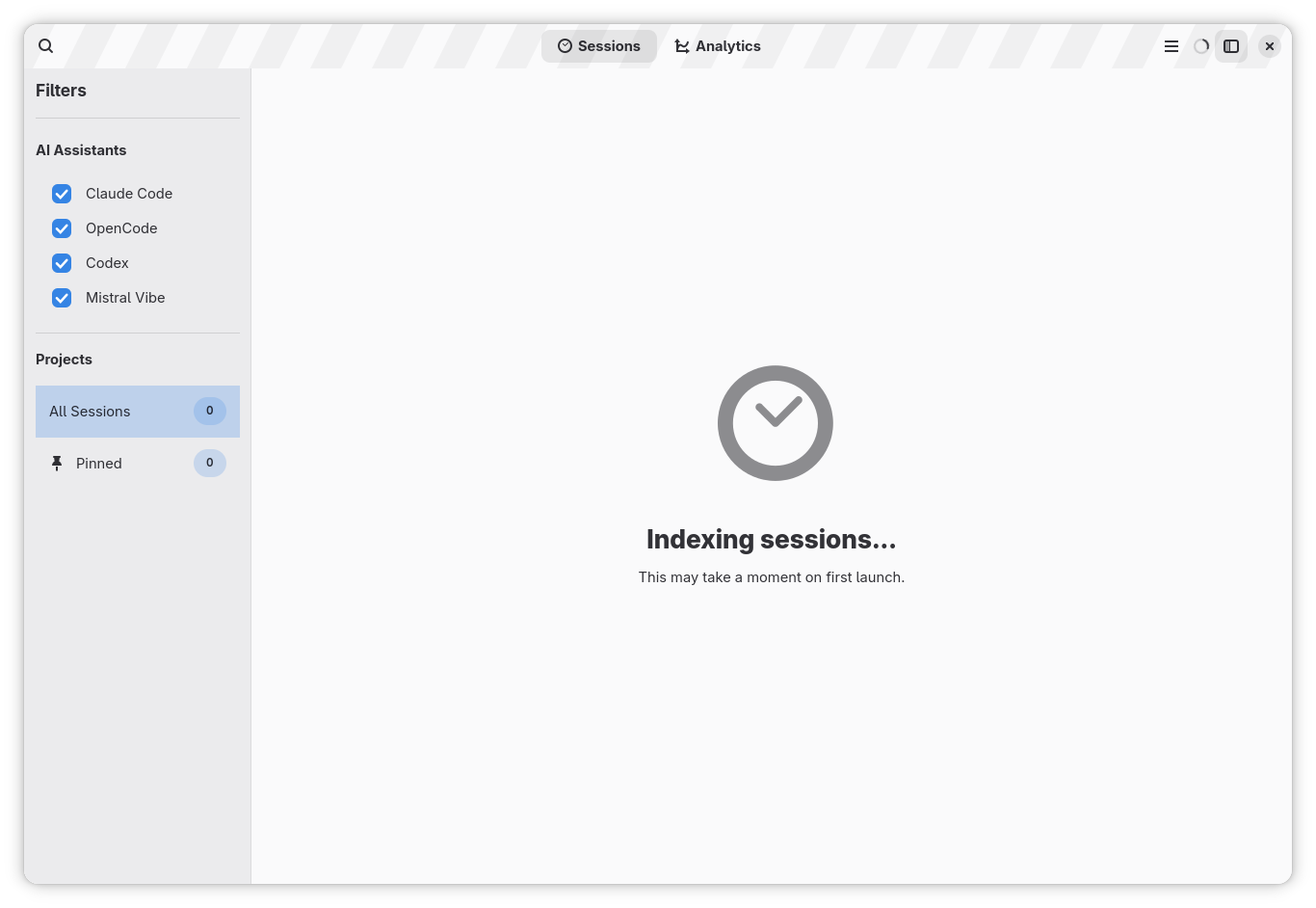
- The header spinner shows when indexing is in progress.
- The sidebar shows per-source status for each AI assistant.
- The first indexing pass may take a little time if you have many sessions.
Understand the interface
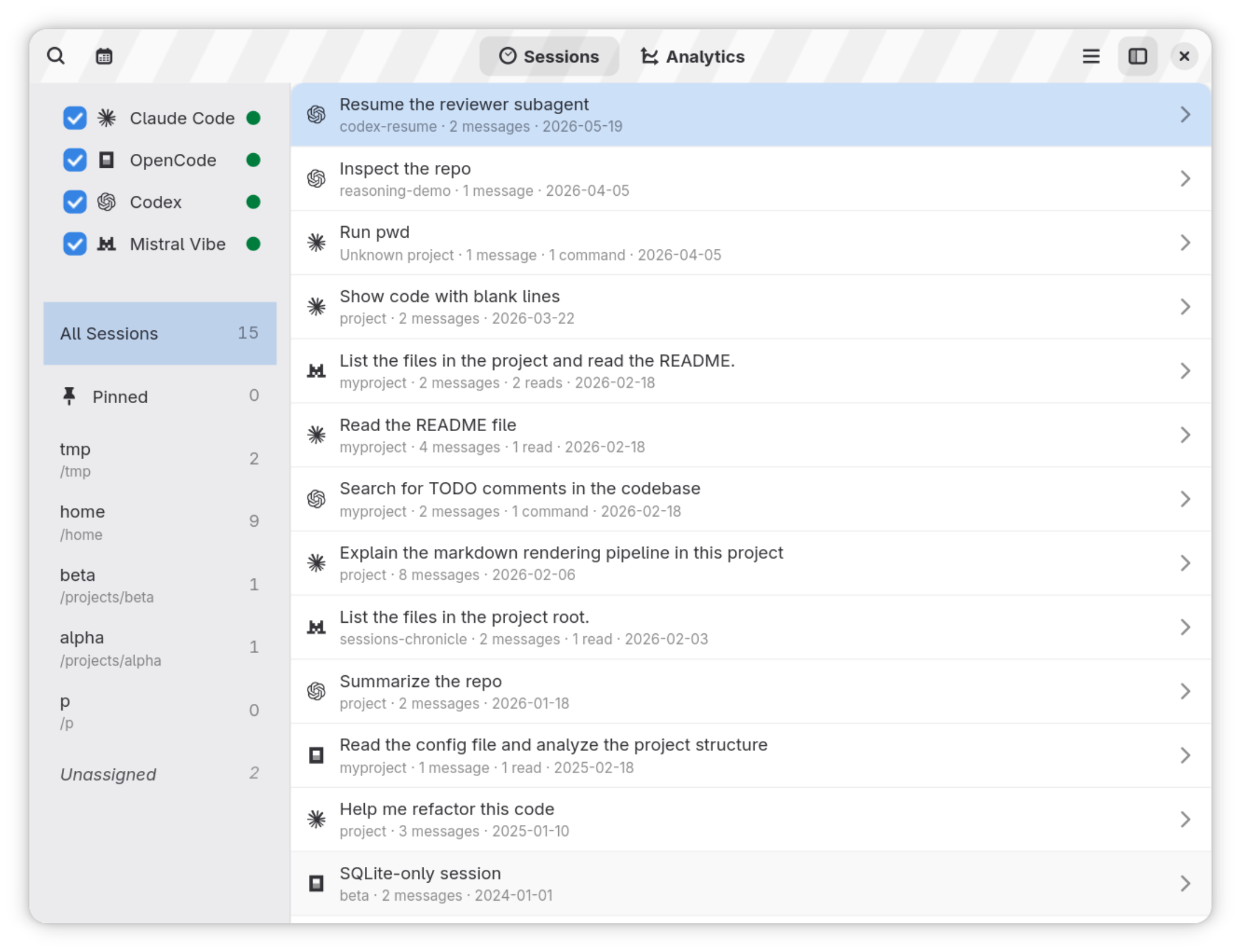
The main window is organized around three areas:
- The left sidebar filters sessions by AI assistant and project.
- The session list helps you browse indexed conversations.
- The detail view shows a full transcript and deeper inspection tools.
The goal is simple: move from a large archive of sessions to the exact conversation you need.
Find a session
You can find a session in several ways:
- Filter by AI assistant.
- Filter by project.
- Filter by date.
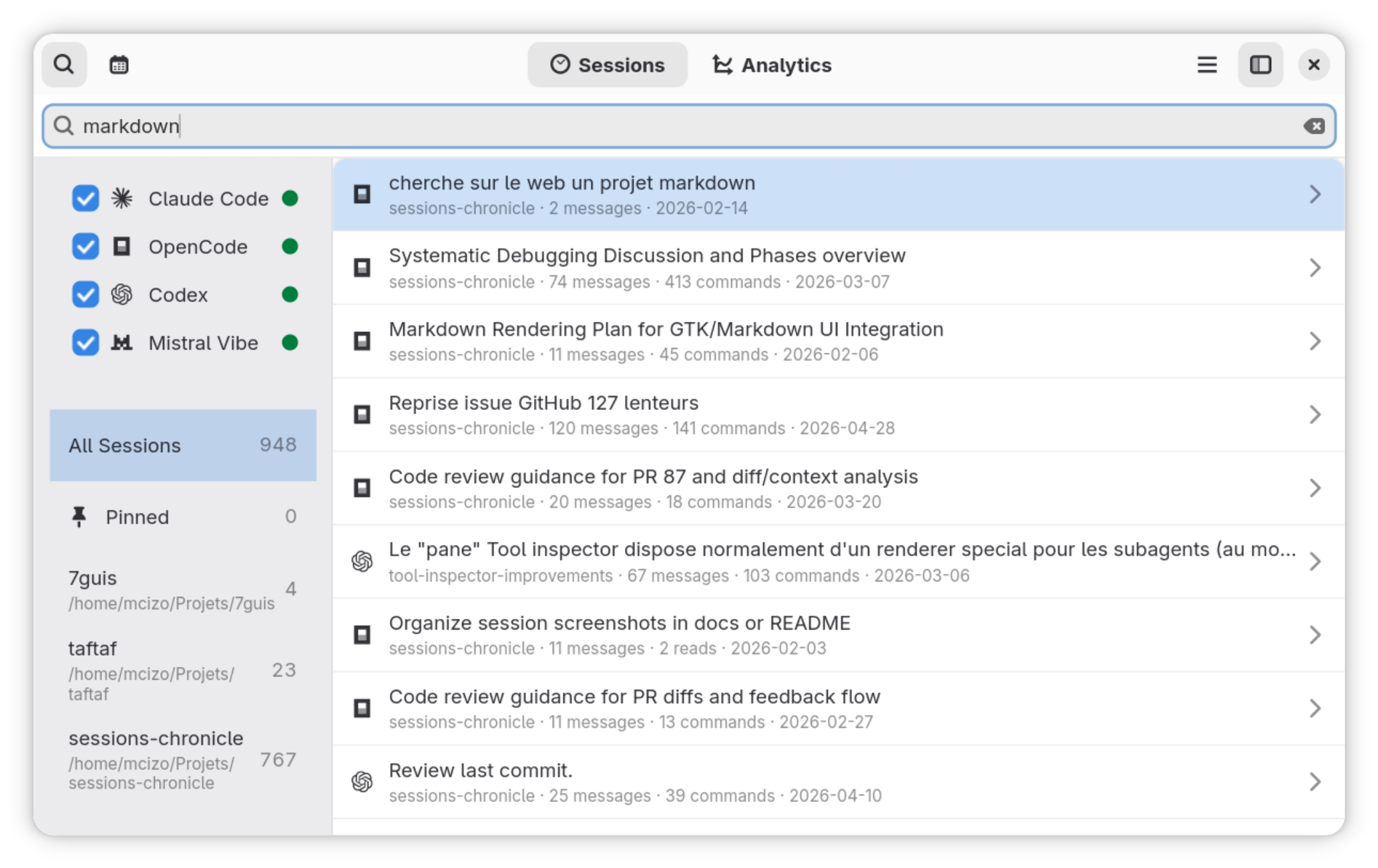
- Search by keyword.
- Combine filters and search.
The date filter sits above the session list. Pick a preset such as
Today, Last 7 days, Last 30 days,
or This year, or set a custom range to focus on a specific
period.
Search covers prompts, responses, and visible tool calls in the
transcript. If you already know the session ID, use
id: in the search box to jump directly to it.
Search from GNOME Activities
Sessions Chronicle can also answer searches from the GNOME Activities overview, so you can find a session without opening the app first.
-
Enable Sessions Chronicle in
Settings ▸ Search. The search provider is off by default. - Type at least three characters in Activities to see session results.
- Select a result to open the session directly in Sessions Chronicle.
- Only sessions already indexed locally can appear.
A result's title is the session's first prompt, which is
always visible in the overview. Matching transcript excerpts are
hidden by default: to show them, open the app's
Preferences, then enable
System Search ▸ Show matching text in results.
If Sessions Chronicle does not appear in Activities results, check
that it is enabled in Settings ▸ Search and that your
sessions are indexed (see Troubleshooting).
Read a session
When you open a session, Sessions Chronicle shows the full transcript in a reading-friendly detail view.
You can review the project context, messages, code blocks, lists, quotes, and other supported markdown content.
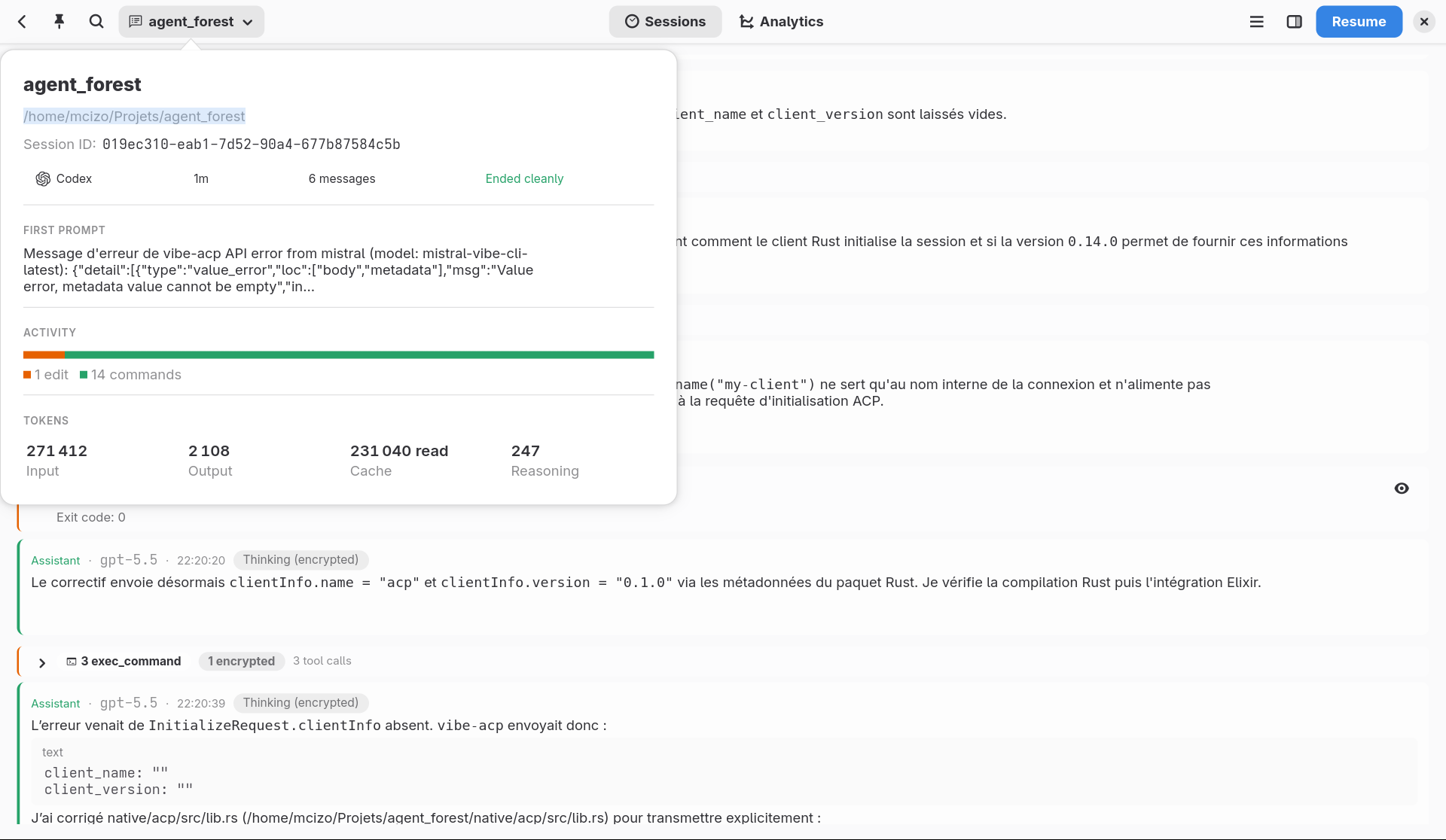
Session metadata now lives behind the header's
Session summary button. Open it to see the project,
path, session ID, AI assistant, duration, message count, ending
status, first prompt, activity breakdown, and token totals without
taking space away from the transcript.
Inspect tool calls and subagents
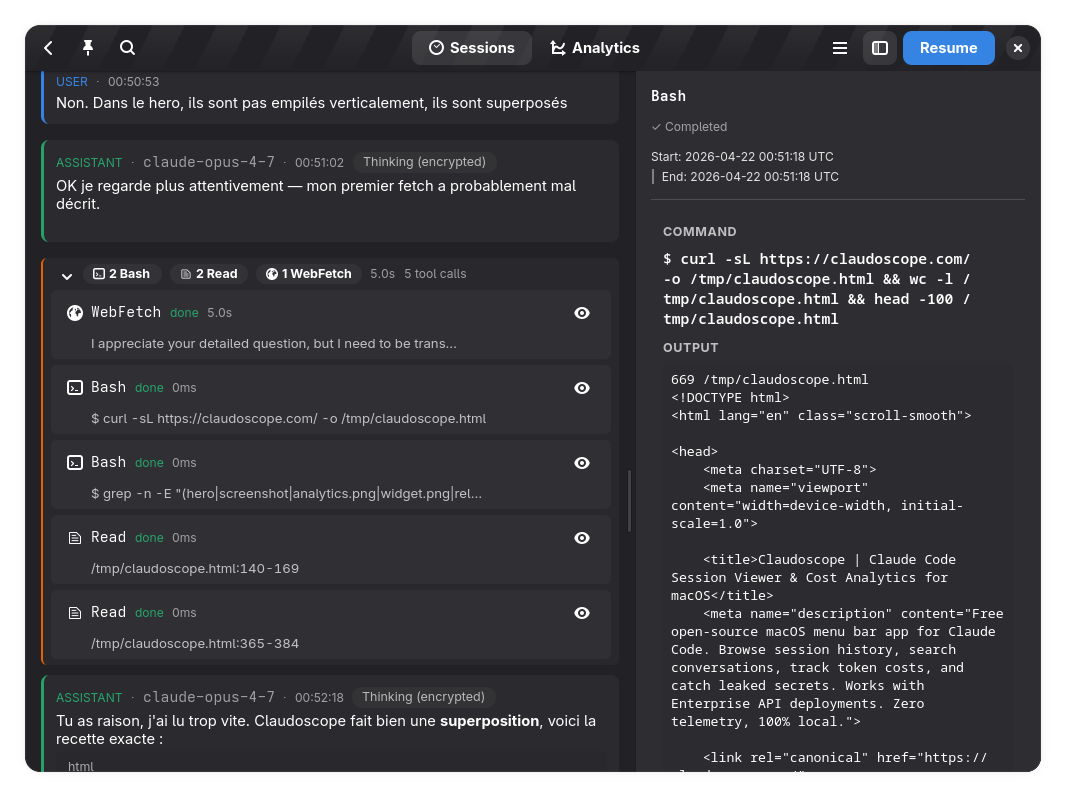
Sessions Chronicle makes tool calls easier to inspect. Open a tool call to review its arguments, output, and other useful details.
Consecutive tool calls are grouped so busy sessions stay readable.
When a session includes subagents, you can inspect those interactions more closely as well. This helps you understand not just what was said, but what actually happened during the session.
Pin important sessions
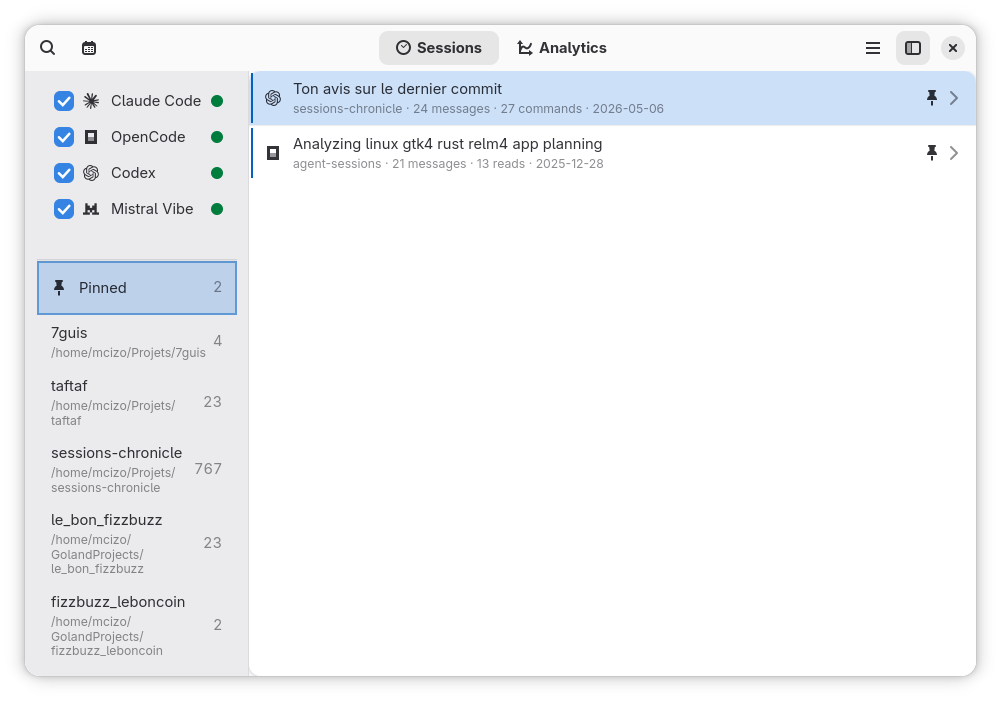
You can pin a session to keep it easy to find later. The
Pinned filter in the sidebar gives you a dedicated view
of the sessions you want close at hand.
- Keep a useful debugging session.
- Save a reference conversation.
- Mark a session to resume later.
Resume a session in your terminal
When you find a session you want to continue, use the
Resume button. Sessions Chronicle opens your configured
terminal and resumes the session from the right working context.
You can choose which terminal to use in the app's Preferences.
Main Kimi Code sessions resume with
kimi --session <id>. Linked synthetic child transcripts
can be opened in Sessions Chronicle, but they cannot be resumed
directly.
View analytics
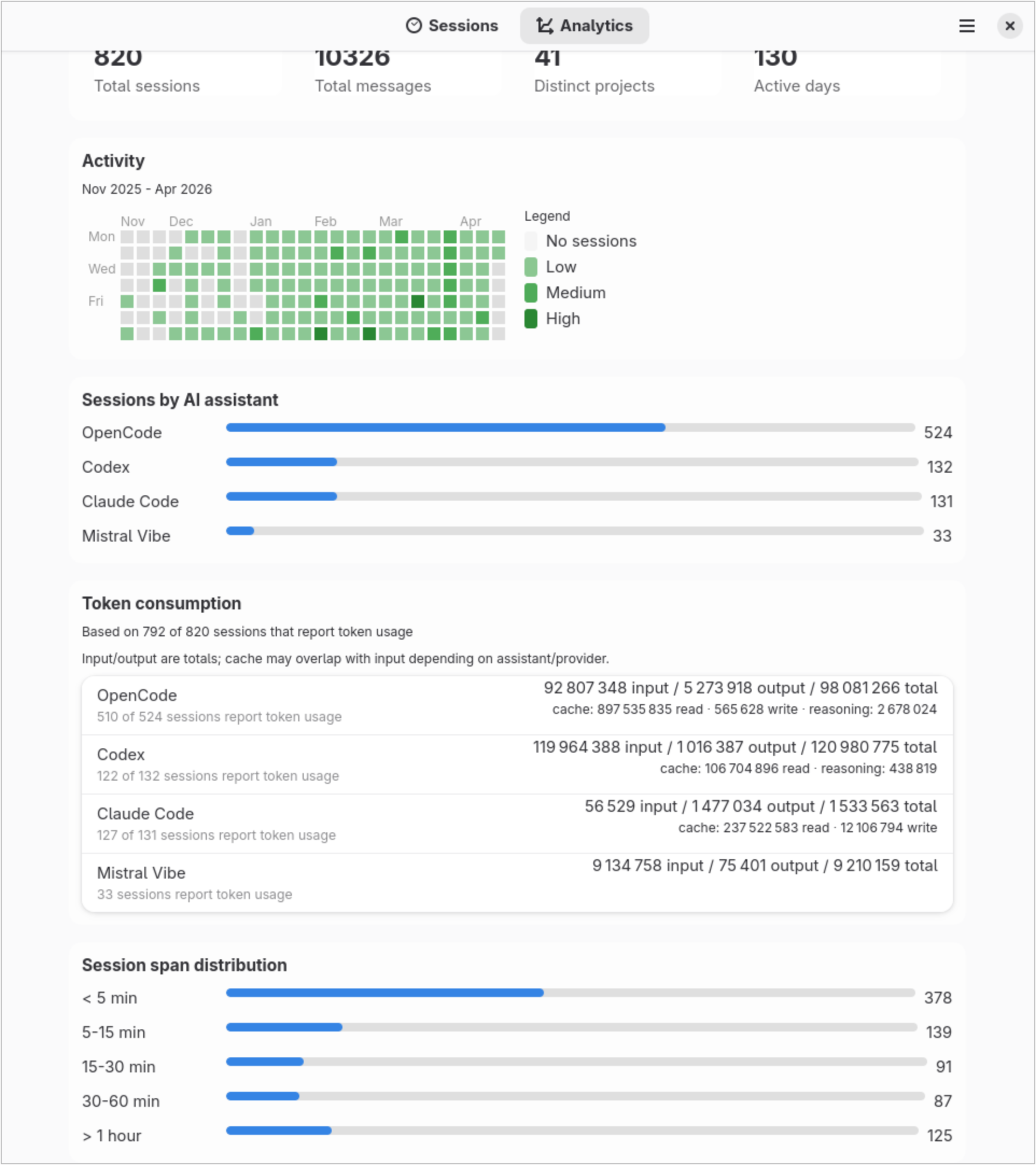
The Analytics view gives you a higher-level view of your activity across AI assistants and projects.
You can see which AI assistants you use most, which days are most active, and token-related stats when the source data provides them. Not every source exposes the same metadata, so some sessions may not include full token information.
Troubleshooting
If no sessions appear, or if a source looks incomplete, start by checking the app's indexing status.
- A source directory may be missing.
- A source may contain no sessions yet.
- Indexing errors may have prevented a complete result.
Open Indexing Status to inspect the state of each
source. If needed, open Preferences, then use
Reset session index to rebuild the index from scratch.
Kimi Code sessions are read from $KIMI_CODE_HOME, which defaults
to ~/.kimi-code. Custom locations work when they are visible in
the Flatpak sandbox. The older Python CLI layout under ~/.kimi
is not supported.
Quick checks:
No sessions found: make sure the source apps have already created sessions on this machine.Source directory not found: make sure the relevant AI assistant is installed and has written local session data.Missing results: checkIndexing Status, then try a full index reset.
Useful shortcuts
Ctrl+F: searchCtrl+Shift+D: open the date filterCtrl+D: pin or unpin the active sessionF9: toggle the relevant side paneEscape: close search, close the inspector, or go backCtrl+Shift+I: open Indexing StatusCtrl+,: open Preferences
Summary
Sessions Chronicle turns a scattered history of AI assistant sessions into a local archive you can search, read, inspect, and resume.